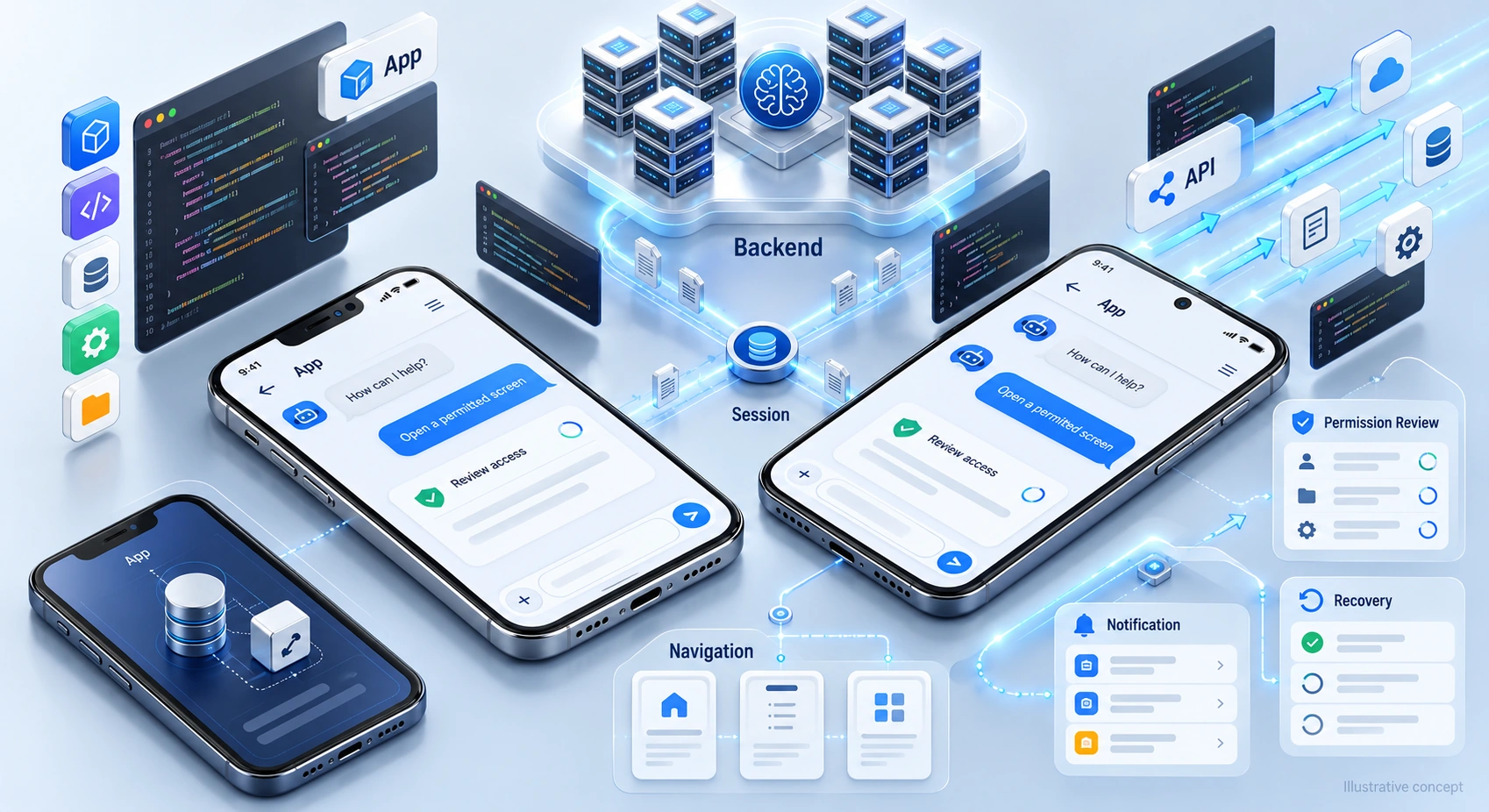

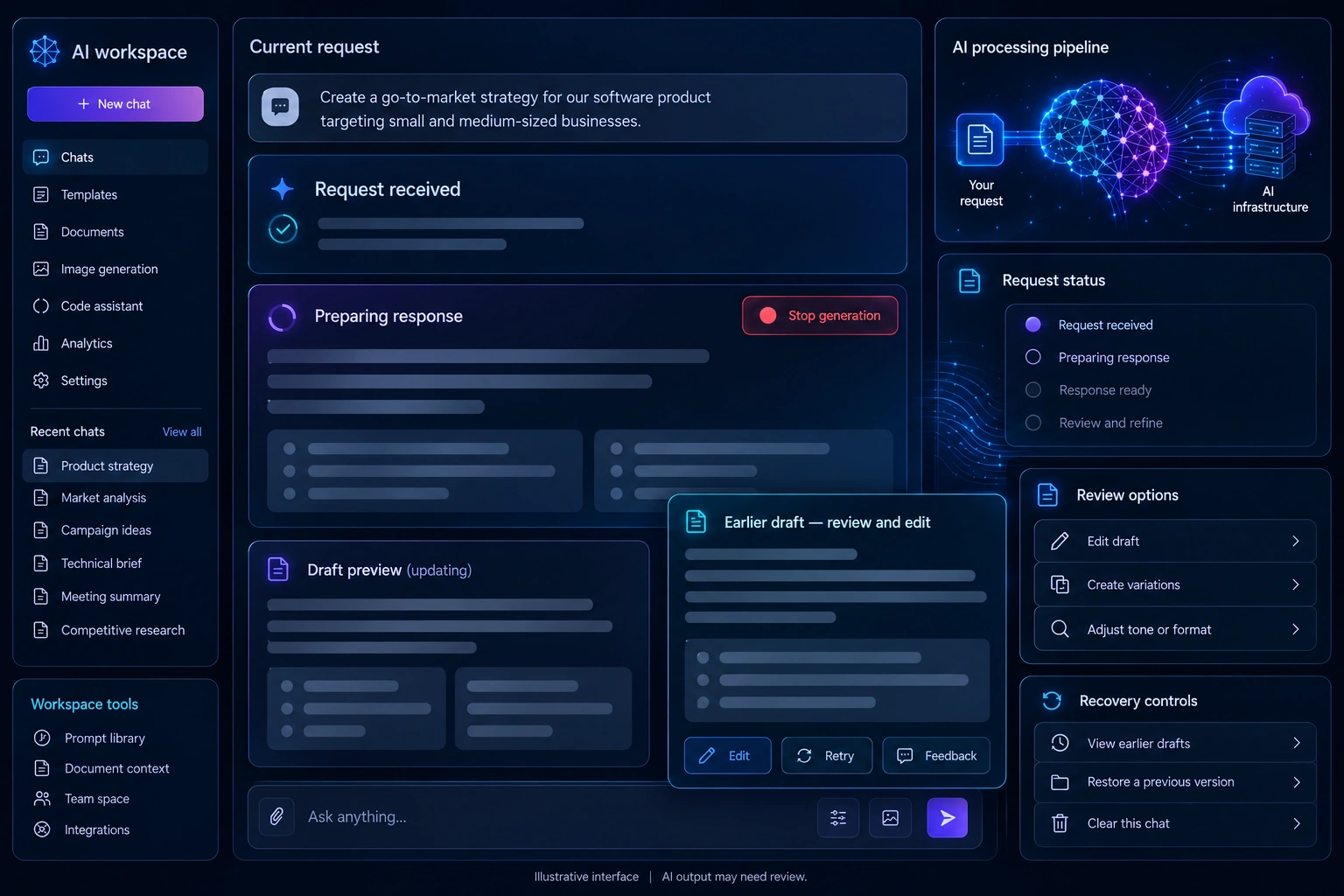
A useful machine learning model also needs a clear interface. People should be able to understand its output, find the next action and recover when a response is incomplete or incorrect.
AI application interfaces need to account for uncertain outputs and variable response times. Familiar navigation and clear feedback help users understand what the system is doing and when their input is needed.
Generating images, processing documents and producing conversational responses can take time. AI outputs can also contain errors. Show progress honestly, explain relevant limitations and provide ways to review, correct or retry an output rather than suggesting that every result is reliable.
This guide examines practical interface patterns for AI products, from loading feedback to editable outputs. These decisions belong alongside engineering and evaluation in the AI application development lifecycle.
DigiWeta’s generative ai app development services connect application engineering with interface design. Discuss the user journey, model limitations and review requirements before defining your project.
Chapter 1: The Psychology of AI Latency
Waiting for results is an important interface consideration in generative AI application development.
Response times vary with the task, model, infrastructure and connection. Rather than hiding uncertainty, show users that their request was received and explain what happens next. Choose loading feedback that reflects actual system activity, and provide clear recovery options when a request fails.
Skeleton Screens and Shimmer Effects
Skeleton screens reserve space for expected content while it loads. They can help people anticipate the page structure, but are not a universal replacement for loading indicators. Choose an appropriate pattern for the task, avoid unnecessary animation and do not imply progress that the system cannot measure.
Micro-Interactions and “Working” States
For longer operations, provide status information that matches observable system activity rather than leaving users uncertain about their request.
- Show relevant status updates, such as “Uploading document” or “Preparing response,” only when those states are known.
- Status messages should explain activity, not pretend to reveal the model’s reasoning. Include a clear error or retry state when processing stops.
Interface decisions also depend on processing requirements. Explore the differences between traditional vs AI-powered app development when planning loading, review and recovery behavior.
Chapter 2: Streaming Outputs (The ChatGPT Effect)
For suitable text-generation tasks, streaming can let people begin reading before the complete response arrives. Other workflows may require reviewing the full output first.
Server-Sent Events (SSE) and WebSockets
Server-Sent Events and WebSockets are possible delivery mechanisms for streaming responses. Select an approach that fits the application’s communication requirements.
- The Workflow: The backend sends output increments as they become available; the interface assembles them without treating each token as a complete word.
- The UX Win: Readers can see available text while generation continues. Actual first-response time still depends on the system. Show when output is incomplete, handle interruptions and avoid promising instantaneous results.
Designing the “Stop Generation” Button
A stop control lets users interrupt an unwanted response. Its effect depends on whether cancellation reaches the backend and model provider; stopping the display alone may not stop processing or charges. Explain the resulting state and let users revise their request.
When designing paid tiers, connect these interaction choices with your approach to monetize your AI app solutions.
Chapter 3: Designing for “Human-in-the-Loop” (HITL)
AI outputs can be incomplete, inaccurate or unsuitable for a particular task. Design the interface so people can review relevant information, recognize uncertainty and decide whether to use the result.
Human-in-the-loop design gives people meaningful review and intervention points. It should clarify what needs approval and what the system can do independently.
Granular Editability
Generated material should remain reviewable before it is used. For example, an email draft or suggested routine in an AI fitness app can appear in an editable field rather than a locked message. Preserve the original output where useful, make changes visible and require appropriate approval before consequential actions.
Micro-Feedback Loops (Implicit vs. Explicit)
Feedback can help teams investigate output quality. Make reporting easy, explain how information is used and collect only what the evaluation process needs.
- Explicit Feedback: Offer clear controls for reporting an error, rating usefulness or requesting another response. Ask for optional context when a rating alone is insufficient.
- Implicit Feedback: Actions such as copying or deleting output may provide clues, but they do not prove accuracy or failure. Interpret these signals cautiously. Any collection, retention or use for model improvement needs an appropriate data-governance process rather than automatic fine-tuning.
Chapter 4: The Conversational Interface vs. GUI
A conversational interface is one option, not a requirement for every AI feature. Start with the task and the user’s context.
Chat can support open-ended exploration. For repeatable actions, forms, buttons or structured controls may reduce effort and make available choices easier to understand.
Augmenting the Graphical User Interface (GUI)
Place AI features within familiar workflows where that makes the action clearer and easier to review.
- Action Buttons: A document view could include a clearly labeled “Summarize” button. Explain which content it uses and provide a way to inspect the result instead of requiring users to compose the same request repeatedly.
- Predictive Prompts (Chips): Suggested questions can show people what the feature supports. Keep suggestions relevant to the current task, allow custom input and avoid implying that every suggested request will produce a reliable answer.
Enterprise interfaces should fit users’ responsibilities and existing workflows. When evaluating custom AI application development, consider whether contextual controls, permissions and review steps would serve the task better than adding a separate chat window.
Chapter 5: Designing for Edge AI and Offline States
On-device AI changes the interface requirements for downloads, storage, connectivity and available features. Plan these states with the engineering team rather than assuming local execution removes every dependency.
Local processing may support offline features, but capabilities depend on the model, device and application. Model files also vary in size. Explain download requirements and available storage before asking users to install additional components.
Asynchronous Model Downloading
Make model downloads and unavailable features understandable.
- Keep the initial installation appropriate to the features users need.
- Before a model download, show its actual size, purpose and connection requirements. Let users choose when to proceed rather than using blanket privacy or speed promises.
- Where supported, allow background downloading and show progress. Explain which features remain usable until installation finishes.
Designers and engineers need to coordinate interface states with model and infrastructure constraints. Reviewing how an artificial intelligence app development agency plans delivery can help teams discuss responsibilities, testing and the handoffs between design, application engineering and machine learning.
Craft Seamless AI Experiences with DigiWeta
An AI feature needs more than a capable model. Clear navigation, honest status messages and practical review controls help users understand and manage the workflow.
DigiWeta’s generative ai application development work brings interface requirements into the project discussion. Define how users submit requests, review results, correct errors and recover from interruptions alongside the application’s technical scope.
Discuss your AI interface requirements with DigiWeta and plan a clear, reviewable user experience.
Frequently Asked Questions
AI features can produce uncertain outputs and variable response times. Design should communicate progress, distinguish incomplete results and provide review or correction controls. Conventional applications can also be slow or fail; the difference is not that they are always instant or error-free.
Latency masking describes interface patterns that make waiting easier to understand. Loading placeholders or status messages can help, but should not misrepresent progress. Prefer honest feedback about known activity, with clear handling for delays, interruptions and errors.
Streaming displays available output before generation finishes, allowing users to begin reading sooner. It does not eliminate network or model delays. The interface should identify incomplete responses and handle cancellation or connection failures appropriately.
Human-in-the-loop design gives people opportunities to review, correct or approve system outputs. For example, an email draft can remain editable until the user chooses to send it. The required level of review depends on the task and consequences of an error.
No. Chat can be useful for exploration, while buttons, forms and structured views may suit repeatable tasks. Choose controls that help users understand the action, provide the necessary inputs and review its result.
A skeleton screen is a placeholder showing where content will appear while loading. It can preserve the expected layout, sometimes with subtle animation. Use it when appropriate for the task; it is not a universal replacement for other loading feedback.
Explain the download’s purpose, actual size and requirements. Provide progress, failure and retry states, and identify features that remain available. Background downloading may help when supported, but offline behavior depends on the particular model and application.
Feedback helps teams investigate where outputs are useful or problematic. Ratings and observed behavior need context; copying text does not prove correctness. Explain collection practices and review the evidence before using it for evaluation or model improvement.